 EZdoss App Documentation
How to Register an Amazon Fire Stick.
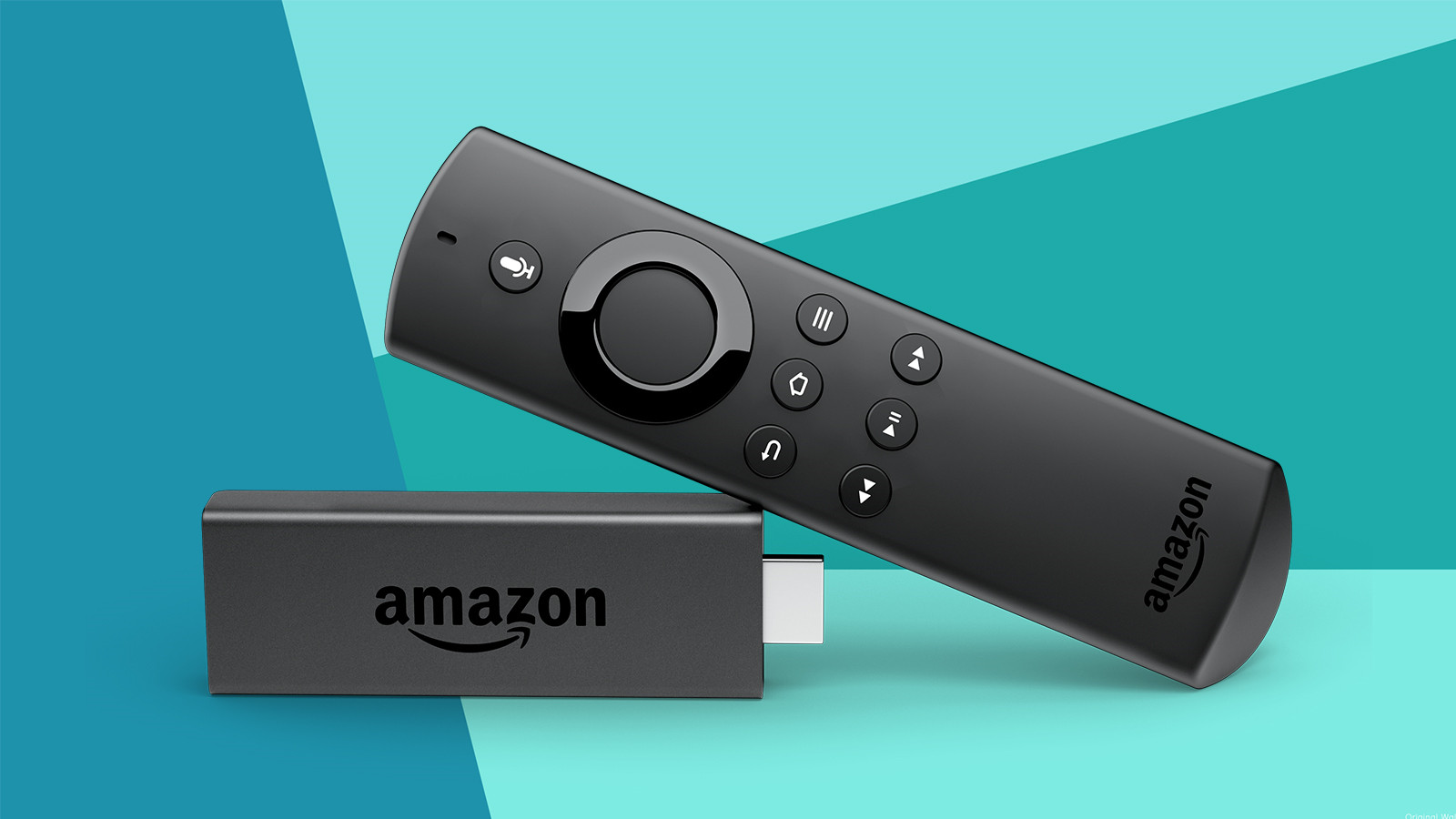
 Connecting the Fire Stick to the TV
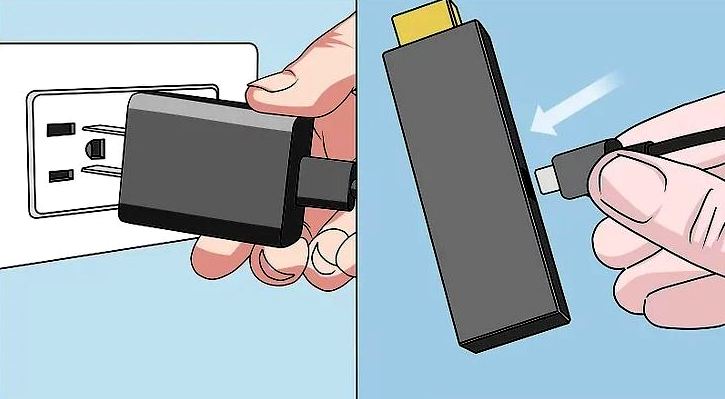
# 1: Connect your Fire Stick to a power source. The smaller end of the adapter (Micro USB) goes into the Fire Stick, and the other end (regular USB) goes into the power adapter.
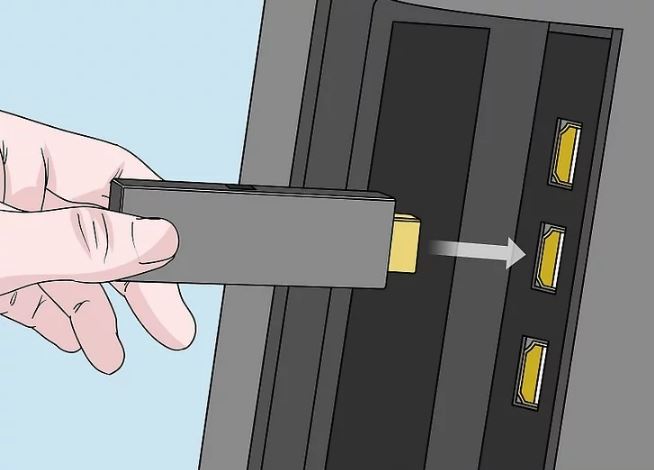
# 2: Plug the Fire Stick into an HDMI port on your TV. If the Fire Stick doesn't fit securely into one of the available ports, use the included HDMI extender to give yourself some extra slack.
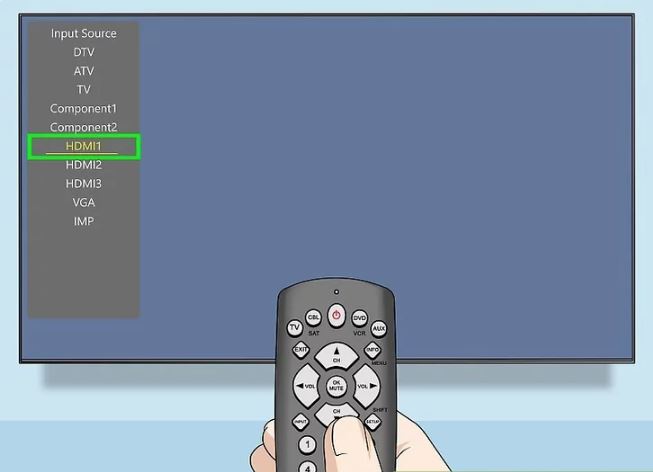
# 3: Turn on the TV and switch to the HDMI source. If your TV has more than one HDMI port, make sure you switch to the one to which you connected the Fire Stick. You should see the Fire Stick loading screen once the correct input is selected.
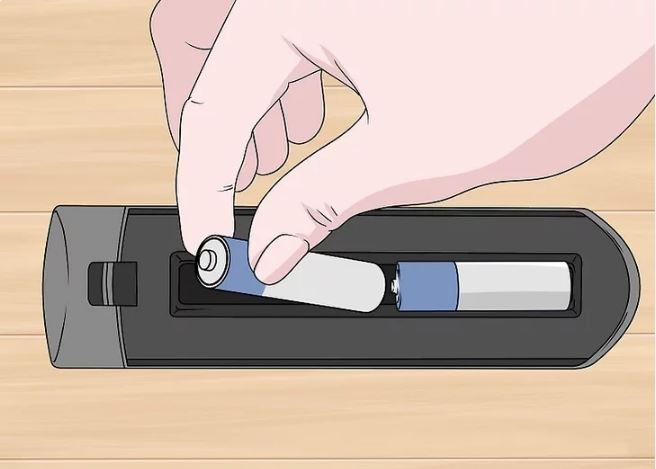
# 4: Pair the Amazon Remote with your Fire Stick. Inserting batteries into the Amazon Remote should automatically pair it to the Fire Stick.
* If the remote doesn't pair automatically, press and hold the Home button for about 10 seconds to enter pairing mode, and then the devices should pair.
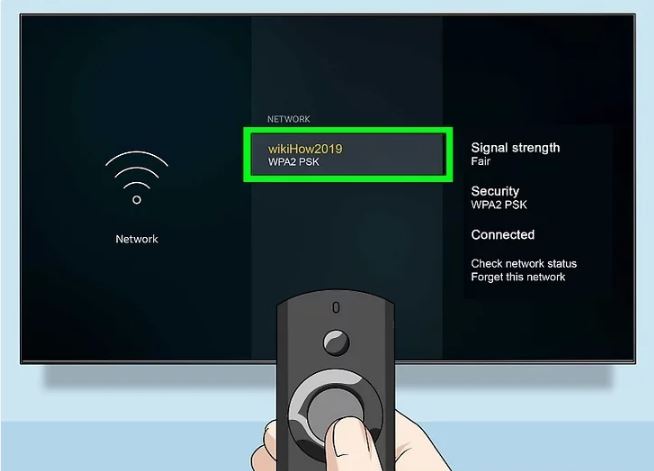
# 5: Connect the Fire Stick to Wi-Fi. Once the remote control is working, you can use it to connect the Fire Stick to the internet. Here's how:
* Press the Home button on the remote to go to the home screen.
* Select Settings at the top of the screen.
* Select Network.
* Select your Wi-Fi network and enter the password (if there is one). You'll see a confirmation message once the Fire Stick connects successfully.
 Registering the Fire Stick to an Amazon Account
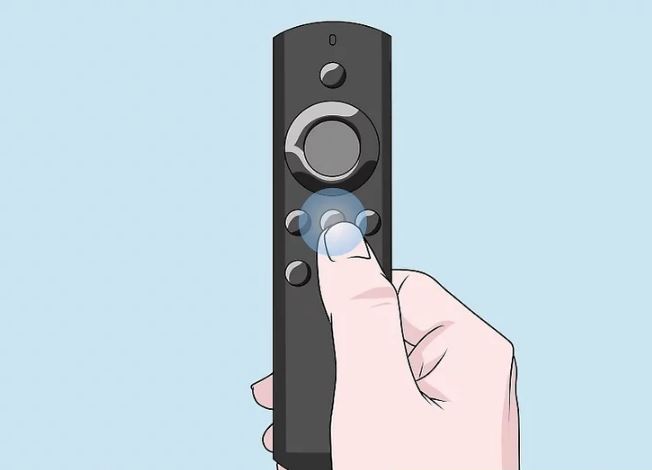
# 1: Press the Home button on your Amazon Remote. This brings you back to the Fire TV menu.
* If the Fire Stick is already on a screen that says "Sign in with Your Amazon Account," select I already have an Amazon account (if you have one) or I am new to Amazon (if you don't). Then, skip to Step-5.
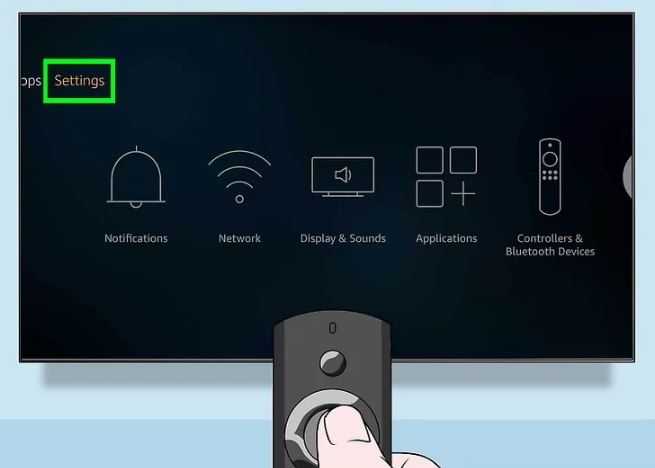
# 2: Select Settings . It's at the top of the screen.
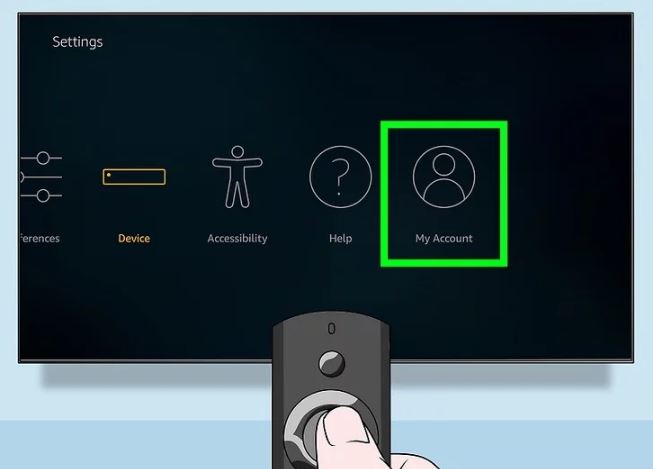
# 3: Select My Account. The icon looks like the outline of a person. If the Fire Stick is not registered, you'll see a "Register" option on the screen.
* If you see an account name instead of "Register," the Fire Stick is already registered to an account. If you need to register it to a different account, select the current account, then select Deregister.
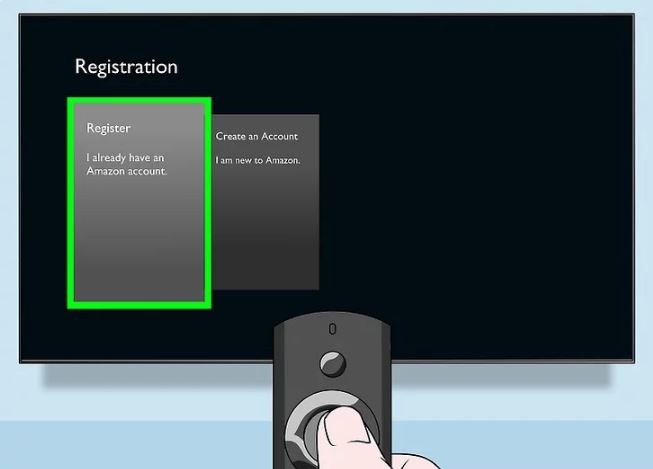
# 4: Select Register if you already have an Amazon account. A sign-in screen will appear.
* If you don't have an Amazon account, select Create an Account, and then follow the on-screen instructions to create a login and password.
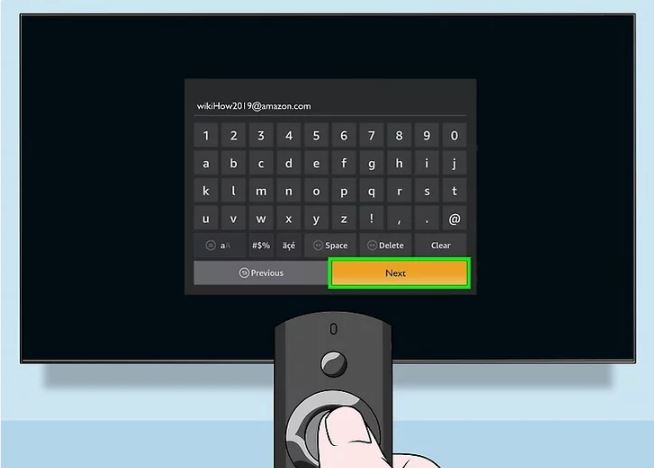
# 5: Enter your Amazon login ID and select Next. This is the e-mail address you use to access your Amazon account.
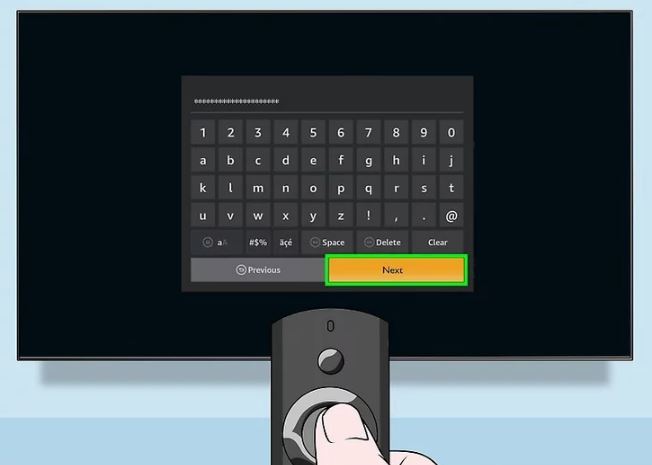
# 6: Enter your Amazon password to sign in. Once your password is accepted, you'll see a screen that says "Registering your Amazon Fire Stick." Once the registration is complete, this message will change to "Successfully registered."
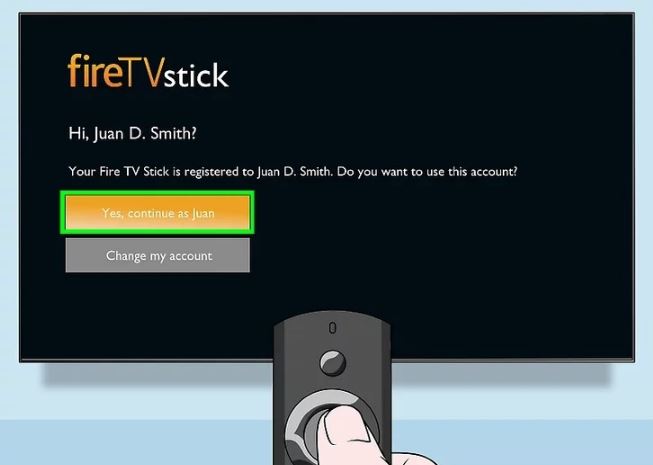
# 7: Follow the on-screen instructions to complete the registration. Once you're signed in, you'll be taken through a quick setup process that leads you to the Home screen, where you can start watching your favorite content.
Thanks for using !
How To Download Ezdoss App.
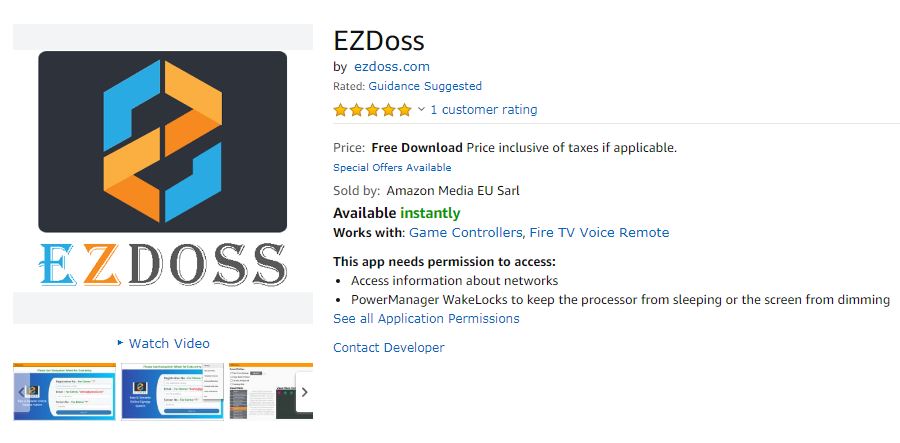
Downloading Ezdoss from Amazon App Store.
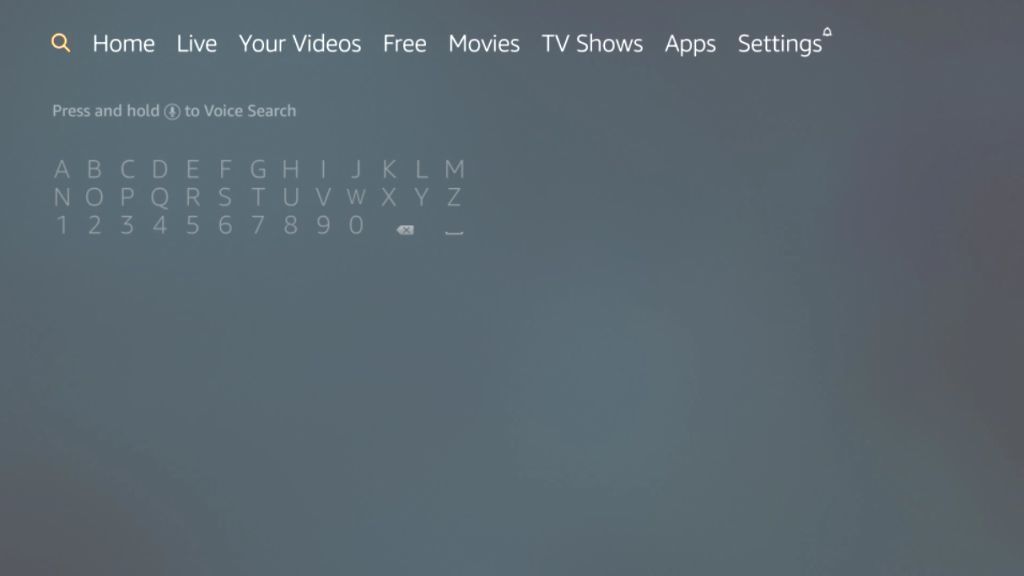
#1: From the Device’s Main Menu scroll to hover over the Search icon
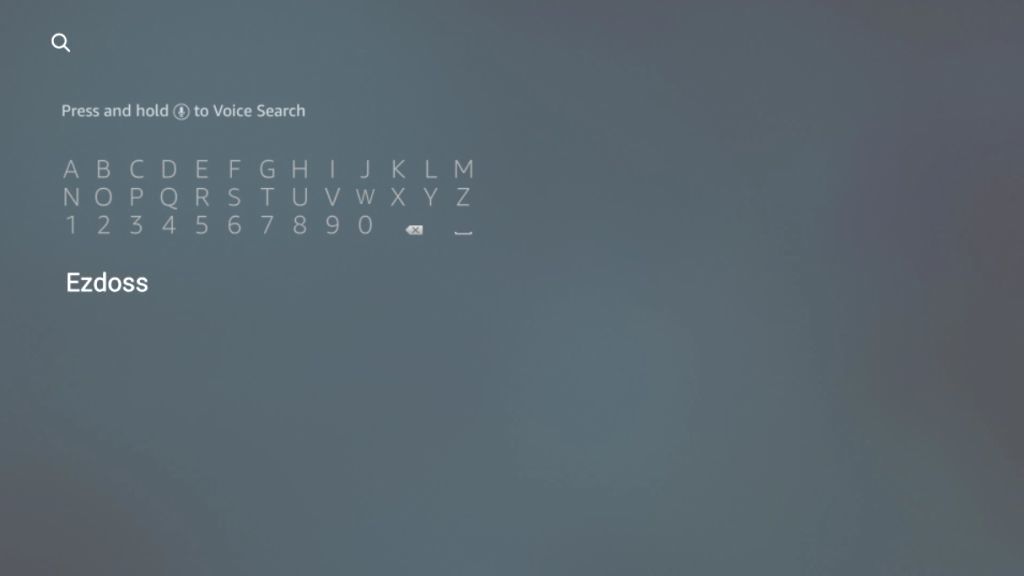
#2: Type in Ezdoss
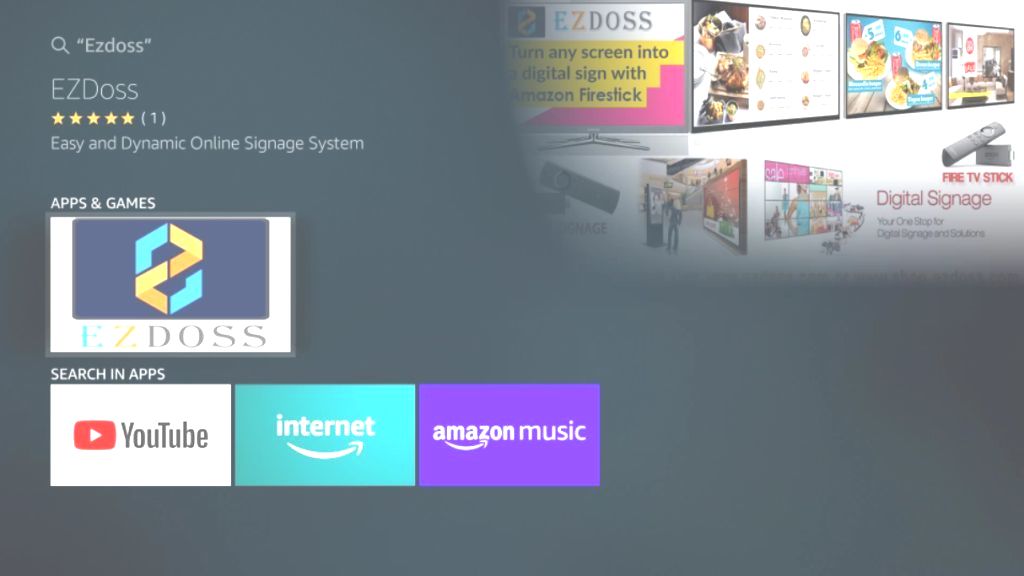
#3: Select the Ezdoss app
; ?>)
#3: Click Download
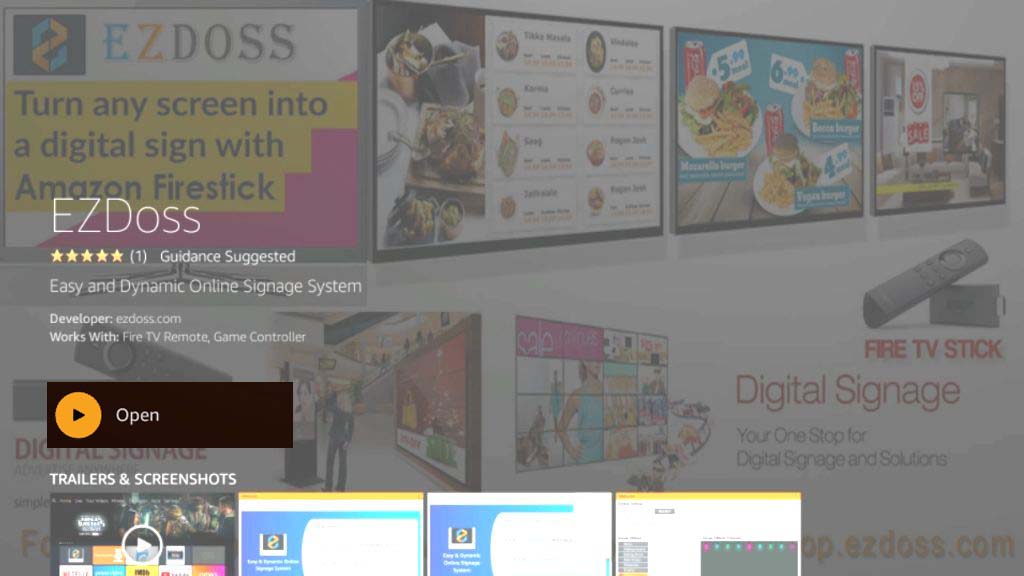
#3: Click Open

#3: Click Allow
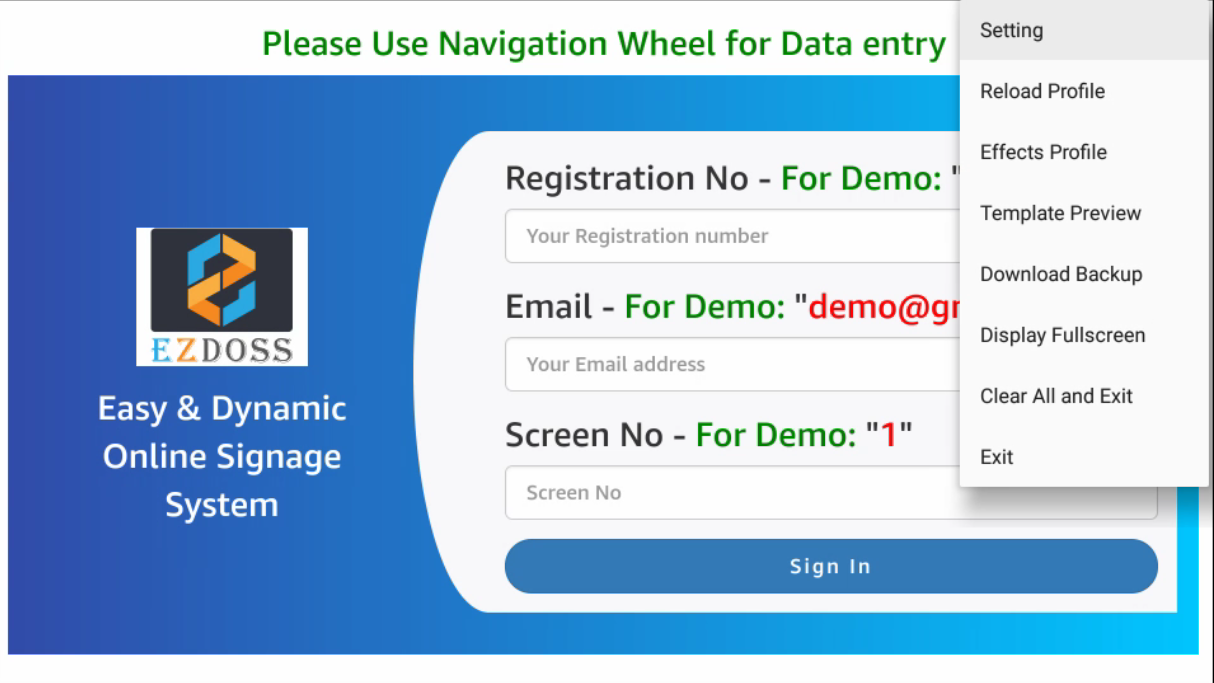
#3: Click ok and That's it.